Keyboard Shortcuts
The following is a list of keyboard shortcuts that can be used in CaseView documents.
Tip:
You can access almost any command in the CaseView ribbon by using ALT key shortcuts.
- Simply press ALT and a list of letters will display.
- Then input the letter or letters consecutively to access the command.
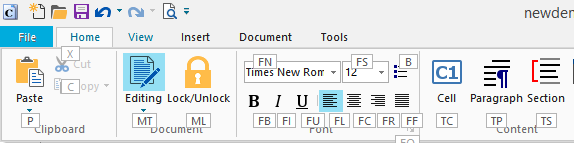
For example, to open a new document simply press ALT then F then O.
| To do this | Press | Works in these mode(s) |
|---|---|---|
| Open CaseView Help | F1 | All |
| Toggle Full Screen | Alt + F11 | All |
| Zoom in | Ctrl + '+' ( on NumPad) | All |
| Zoom out | Ctrl + '-' ( on NumPad) | All |
| Zoom to 100% | Ctrl + 0 | All |
| Clear | Del | All |
| Toggle Auto Paginate | F7 | All |
| Knowledge Library Index | Ctrl + Alt + K |
Design Mode, and Form Mode with editing enabled |
| New Knowledge Library | Ctrl + Alt +N |
Design Mode, and Form Mode with editing enabled |
| Open Knowledge Library | Ctrl + Alt +O |
Design Mode, and Form Mode with editing enabled |
|
Jump to Equation bar |
F2 |
Design Mode, and Form Mode with editing enabled |
|
Jump to a bookmark |
F5 |
All |
|
Toggle Editing Mode |
F6 |
All (if allowed) |
|
Access the Linkage worksheet |
F9 |
Design Mode, and Form Mode with editing enabled |
|
Recalculate balances in the Linkage worksheet |
F12 |
Design Mode, and Form Mode with editing enabled |
|
Select the entire document |
Ctrl+A |
All |
|
Bold a selection |
Ctrl+B |
Design Mode, and Form Mode with editing enabled |
|
Copy a selection |
Ctrl+C |
All |
|
Copy formatting of selected text |
Ctrl+Shift+C |
Design Mode, and Form Mode with editing enabled |
|
Access the Style Sheet dialog |
Ctrl+E |
Design Mode, and Form Mode with editing enabled |
|
Find text or cells in the document |
Ctrl+F |
All |
|
Launch the Paragraph Properties dialog |
Ctrl+G |
Design Mode, and Form Mode with editing enabled |
| Find next text or cell in the document based on settings in the Find dialog. | F3 | All |
|
Replace text or cells in the document |
Ctrl+H |
Design Mode, and Form Mode with editing enabled |
|
Italics |
Ctrl+I |
Design Mode, and Form Mode with editing enabled |
|
Insert and Modify Cell Properties |
Ctrl+L |
Design Mode, and Form Mode with editing enabled |
|
Create a new document |
Ctrl+N |
All |
|
Open a file |
Ctrl+O |
All |
|
Print the document |
Ctrl+P |
All (except Opening CaseView screen) |
|
Renumber a cell |
Ctrl+R |
Design Mode, and Form Mode with editing enabled |
|
Save the document |
Ctrl+S |
All |
| Save all | Ctrl + Shift + S | All |
|
Modify character attributes of selected text |
Ctrl+T |
Design Mode, and Form Mode with editing enabled |
|
Underline a selection |
Ctrl+U |
Design Mode, and Form Mode with editing enabled |
|
Paste |
Ctrl+V |
All |
|
Cut |
Ctrl+X or Shift+Delete |
All |
|
Redo |
Ctrl+Y |
Design Mode, and Form Mode with editing enabled |
|
Undo |
Ctrl+Z |
Design Mode, and Form Mode with editing enabled |
|
Close the current document |
Ctrl+F4 |
All |
|
Go to the beginning of the document |
Ctrl+Home |
All |
|
Go to the end of the document |
Ctrl+End |
All |
|
Insert a non breaking hyphen |
Ctrl+"-" (do not include quotes) |
Design Mode, and Form Mode with editing enabled |
|
Insert an optional soft hyphen |
Ctrl+Shift+"-" (do not include quotes) |
Design Mode, and Form Mode with editing enabled |
|
Insert a tab in an input paragraph |
Ctrl+Tab |
Design Mode, and Form Mode with editing enabled |
|
Insert / remove a column break |
Ctrl+Shift+Enter |
Design Mode, and Form Mode with editing enabled |
|
Insert / remove a page break |
Ctrl+Enter |
Design Mode, and Form Mode with editing enabled |
|
Select the previous cell |
Shift+Tab |
All |
|
Toggle between current mode and Design mode |
Shift+F6 |
All |
|
Exit CaseView |
Alt+F4 |
All |
| Open the context (right-click) menu | Application key ( ) ) |
All |
- Using the Keyboard and Mouse


Legal
Related Help
 Working Papers
 Audit
Audit Collaborate
 Time
Time