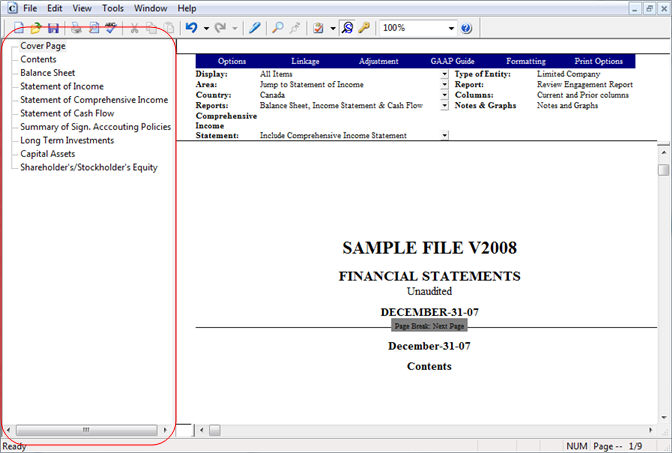
The Document Map provides information about all of the various tagged areas in your document and can be used to navigate the document by clicking entries in the document map.
This feature is applied on a per document basis. To activate the feature, open the Document Settings dialog under the File menu in design mode and on the File tab, select the check box for Display Document Map at startup. The document map will be displayed next time the document is opened.
Clicking on any entry in the Document Map will bring the cursor to that location in the document. As well, clicking within the document will highlight the appropriate entry in the Document Map.
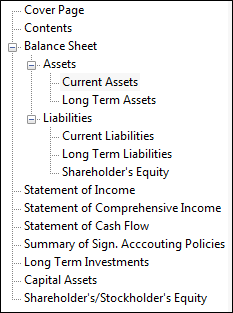
Paragraph tags may be listed as above or may be applied up to sixteen levels deep. This allows for a more robust sorting hierarchy.
Notes
When applying paragraph tags, it is possible to apply a more technical tag for design purposes and an intuitive display tag for the Document Map. Display tags must be entered with a double-quote.
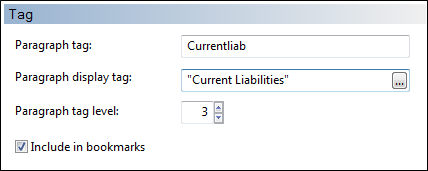
The display tag is entered as a calculation, in this case a text entry with quotes, but it may also be the result of a conditional statement. Assume a template is being developed which will be presented in either French or English. The paragraph tag itself should remain the same regardless, but a display tag could be built as an IIF statement to show either a French or English tag.
| © 2013 Copyright CaseWare International Inc. | | CaseWare® CaseView |